Global Floating Search
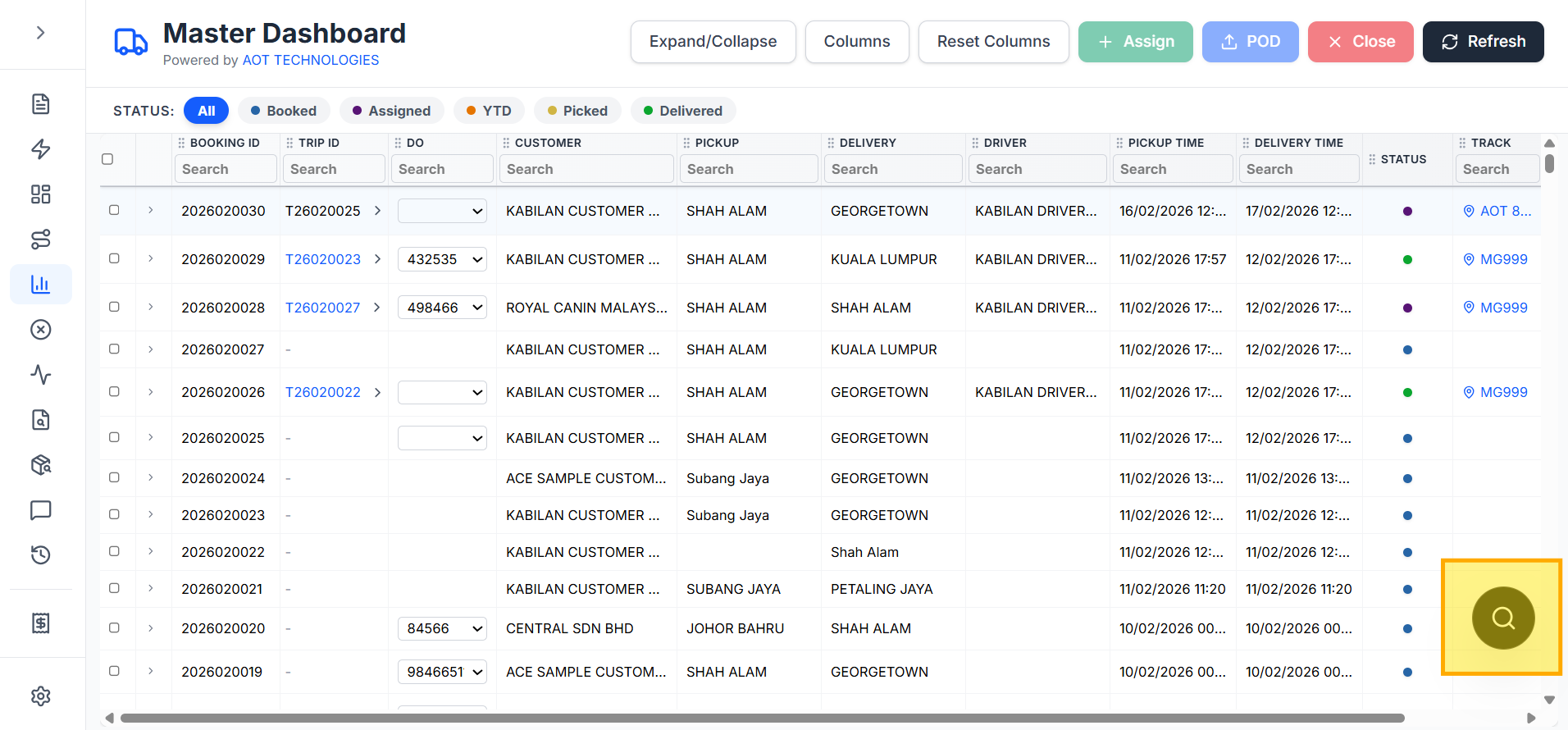
This page explains how to use the floating global search icon and spotlight-style modal.
Screenshots
Floating icon:
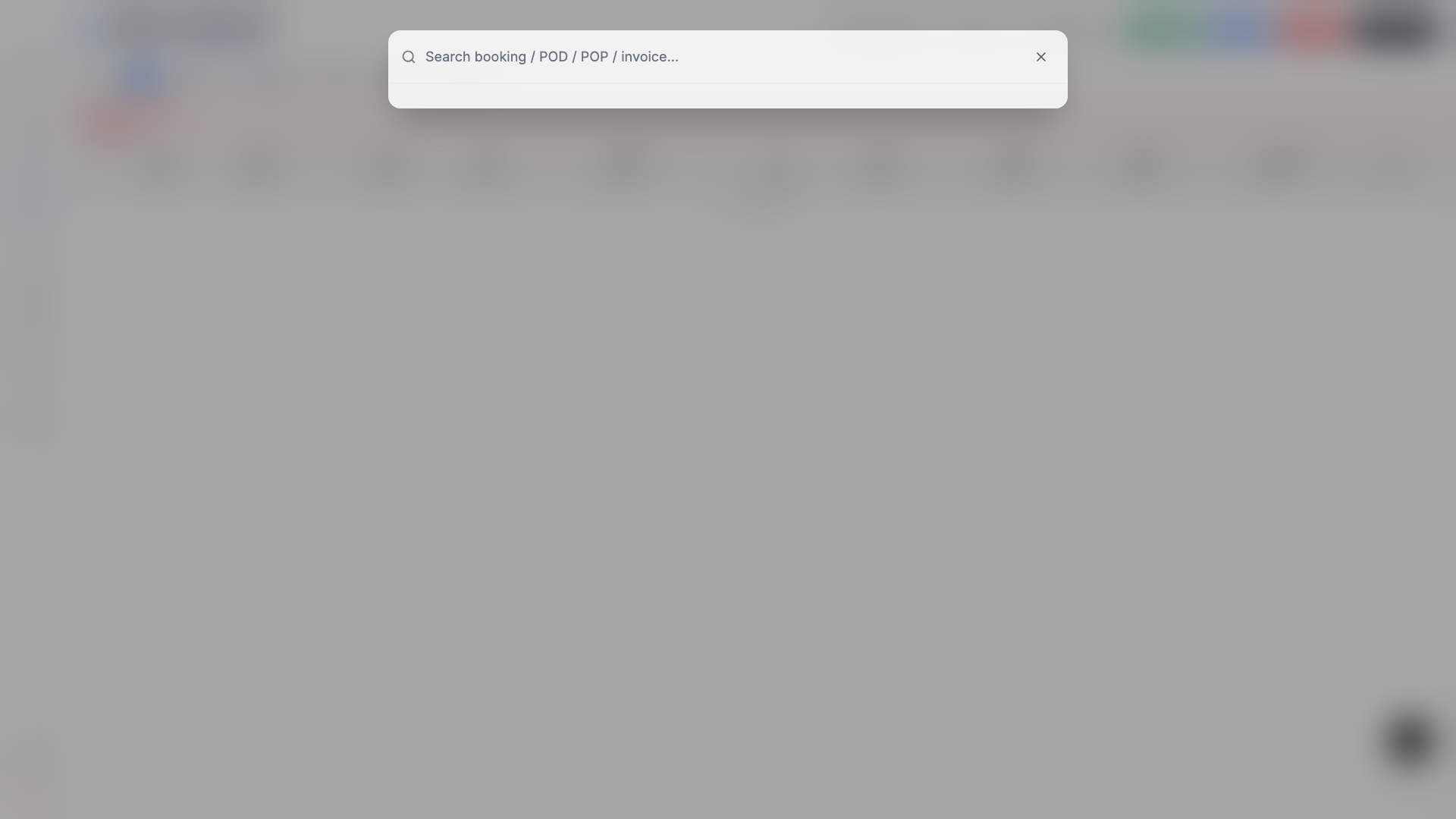
Spotlight modal:
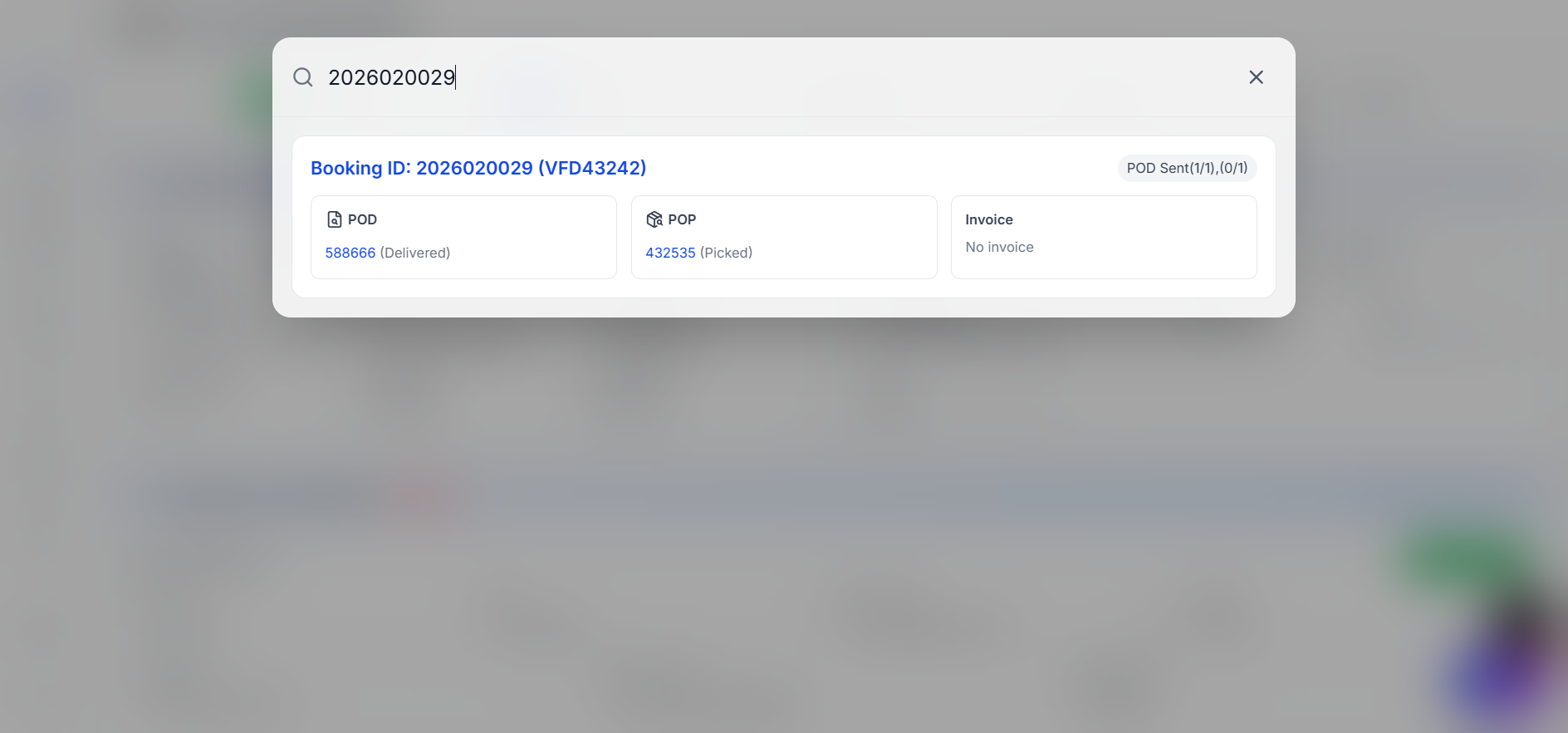
Results and actions list:
Note: This capture was taken in a local dev session; API connectivity in that run returned
Failed to fetch, but the UI states and interaction flow are shown.
What it is
Global Floating Search is a draggable quick-access search button available on logged-in pages.
When clicked, it opens a spotlight-style modal with blur background and global lookup results.
How to use
- Drag the floating icon to any screen position.
- Click the icon to open search.
- Type at least 3 characters (booking id, Job ID, POD id, POP id, invoice id).
- Click a result to navigate.
Position memory
- The floating icon position is saved in cookies.
- On next visit/login, it appears at the same saved location.
Minimum query length
- API search starts only when the input has 3 or more characters.
- For 1-2 characters, no API call is made and UI prompts the user to type more.
Result actions
-
Booking ID(JOB ID) click:
- Opens edit booking page:
/booking/{bookingId}
- Opens edit booking page:
-
POD ID click:
- Redirects to
/do-search - Auto-fills DO filter
- Auto-runs search
- Redirects to
-
POP ID click:
- Redirects to
/co-search - Auto-fills CO filter
- Auto-runs search
- Redirects to
-
Invoice:
- Display only (no click action currently)
Keyboard
- Press
Escto close the search modal.