Blank Invoice
This guide explains how to manually generate a blank invoice for a customer in the application. This feature is useful for ad-hoc billing that is not tied to a specific booking or shipment.
1. 📂 Navigate to the Blank Invoice
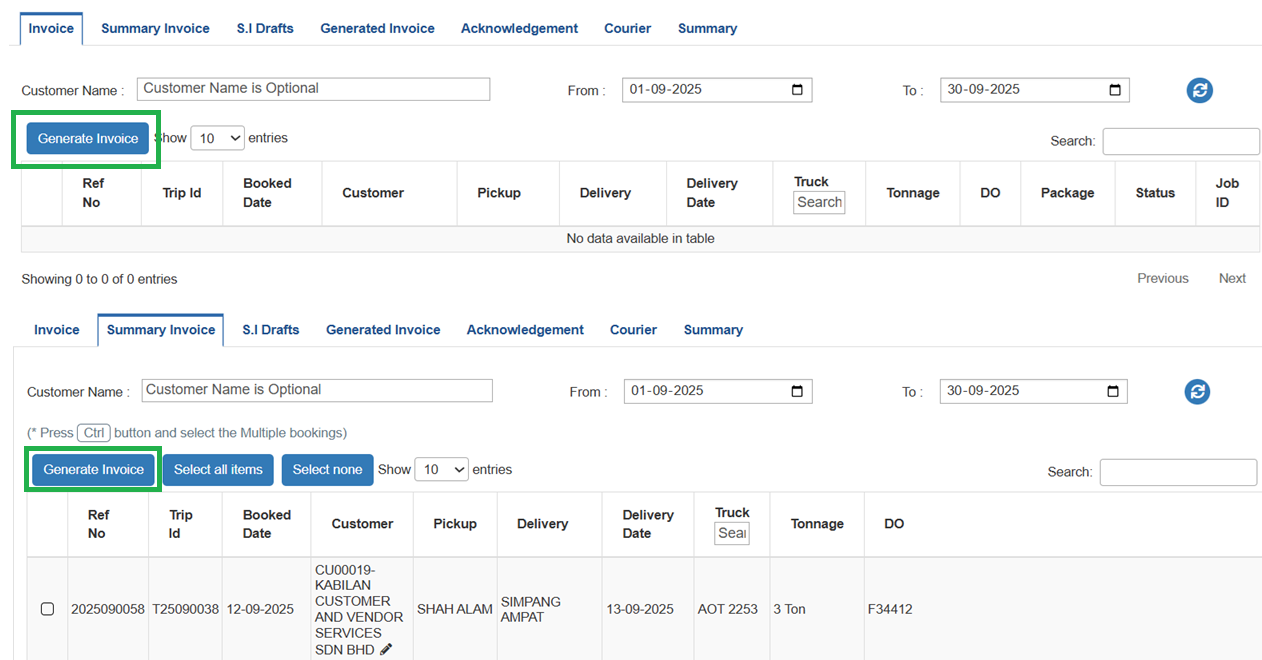
-From the application dashboard, go to the Invoicing module.
-Click on the GENERATE INVOICE button located under the Invoice or Summary Invoice tabs.
-This will open an BLANK INVOICE form.
2. 👤 Fill Out Customer Details
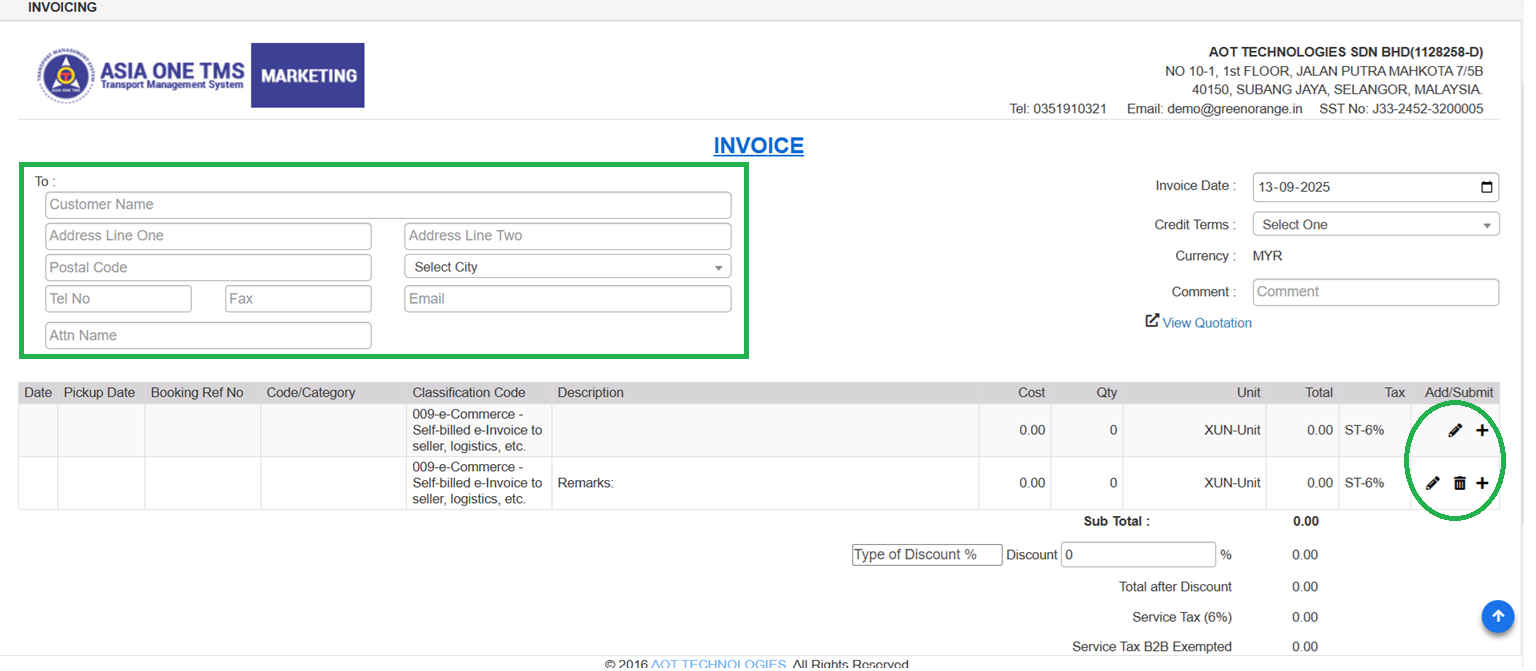
-In the TO section of the invoice, type the customer name, along with other details such as address, phone number, etc.
-If the customer already exists in the system, the details will auto-fill based on the entered name.
-Click on the EDIT icon and enter the required information:
Code/Category
Description
Amount
Quantity
-Choose the appropriate tax type from the dropdown list. By default, SST Tax (6%) will be selected.
Click the SAVE icon to confirm and store the entered line item.
3. 🔍 Review the Invoice
-Verify all details, including customer information, line items, and tax.
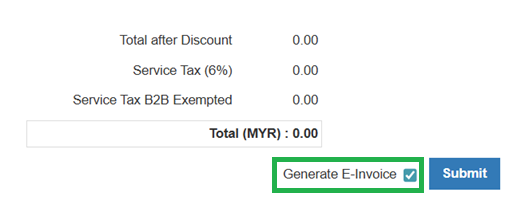
-If you want to submit the invoice to the LHDN portal, check the box labeled Generate E-Invoice.
-Click the SUBMIT button to finalize the invoice.
-Once submitted, the invoice will be moved to the GENERATED INVOICE tab for further reference or action.
🗒️ Notes
-Make sure all required fields are completed before clicking Submit.
-The E-Invoice option should only be enabled if integration with LHDN is active.
-You can always return to the GENERATED INVOICE tab to view, download, or take further actions on submitted invoices.