Cancel Booking
This guide will walk you through the steps for cancelling a booking in the application. Depending on the type of cancellation (non-chargeable or chargeable), the steps and processes may vary slightly.
🧭 Steps to Cancel a Booking
1. 📂 Navigate to the Transportation Cockpit Module
-Go to the Transportation Cockpit module
-Select the booking under the Booked, Assigned, or Delivery in Progress tabs, locate the booking you wish to cancel.
2. 🗑️ Click on the CANCEL Option
-In the left menu, click the CANCEL option to begin the cancellation process.
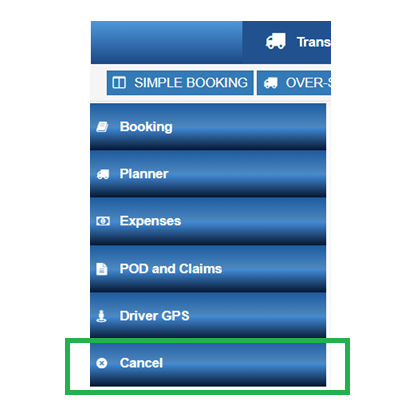
3. 💬 Cancellation Pop-up Box
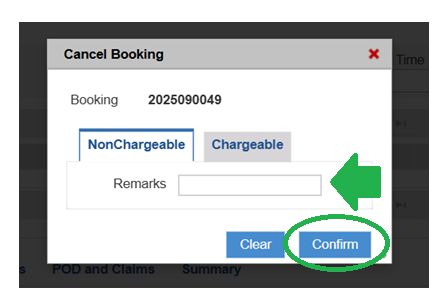
A pop-up box will appear with two sub-tabs:
-Non-Chargeable
-In the non-chargeable tab, provide any relevant remarks about the cancellation.
-After entering the remarks, click the CONFIRM button to proceed with the cancellation.
By default, the non-chargeable tab will be selected.
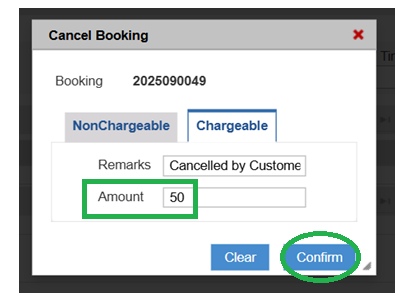
-Chargeable
-In the Chargeable tab, enter the cancellation amount to be charged to the customer and click the CONFIRM button.
🗒️ Additional Information
Booking Movement: After a booking is cancelled, it will always move to the SUMMARY tab, either without invoicing (for non-chargeable cancellations) or with invoicing (for chargeable cancellations).
Cancellation Options: Only bookings that are marked as "Chargeable" can have an associated cancellation fee; non-chargeable bookings are typically not subject to any fees.