Create an Employee
Purpose
The Create Employee feature allows HR staff to quickly add new employees into the system with all necessary personal, employment, payroll, and licensing details. It ensures that each employee has the correct role-based access, payroll setup, and login credentials, while also maintaining a secure record of required documents. This streamline onboarding and helps keep employee information centralized and accurate.
Step 1: Open the Employee Form
Navigate to System Master → HR Master.
Click on the Create New icon to open the Create Employee form.
The Employee ID will be auto-generated.
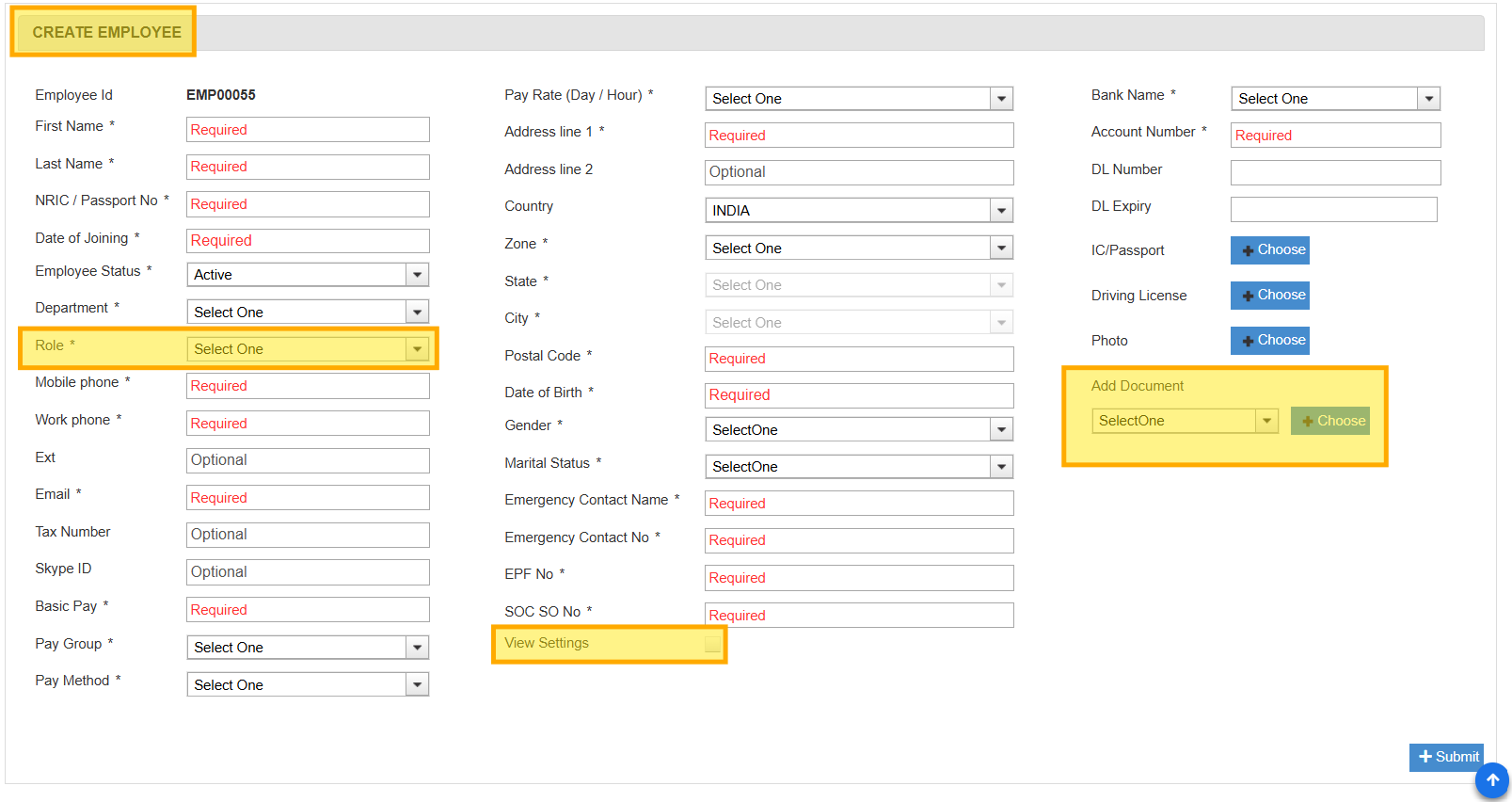
Step 2: Enter Employee Details
Fill in the required information across these sections:
Personal & Contact Information: First/Last Name, NRIC/Passport No., Date of Birth, Address, Work Phone, Mobile, Email ID. → Login credentials will be sent to the entered email.
Employment Information: Date of Joining, Department, Role (module access is based on role).
Payroll Information: Pay Group, Method, Pay Rate, SOCSO No., EPF No., Bank Account Details.
Expiry Date Alerts: Driving License No. & Expiry Date. For drivers: GDL No. & Expiry Date. Settings Access: Enable View Settings checkbox if the employee requires access.
Step 3: Upload Documents & Save
Upload soft copies of required documents (IC, photo, DL).
Add any additional documents if needed.
Review all details carefully.
Click Submit to finalize employee creation.
✅ Quick Tip: Double-check email and bank details before saving, as they are critical for login and payroll processing.