trip-allowance
Trip Allowance Help Guide
Purpose
The Trip Allowance feature helps manage and record allowances provided to drivers for their trips. It ensures accurate tracking of payments, simplifies payroll, and confirms allowance inclusion in payslips.
Quick Steps
-
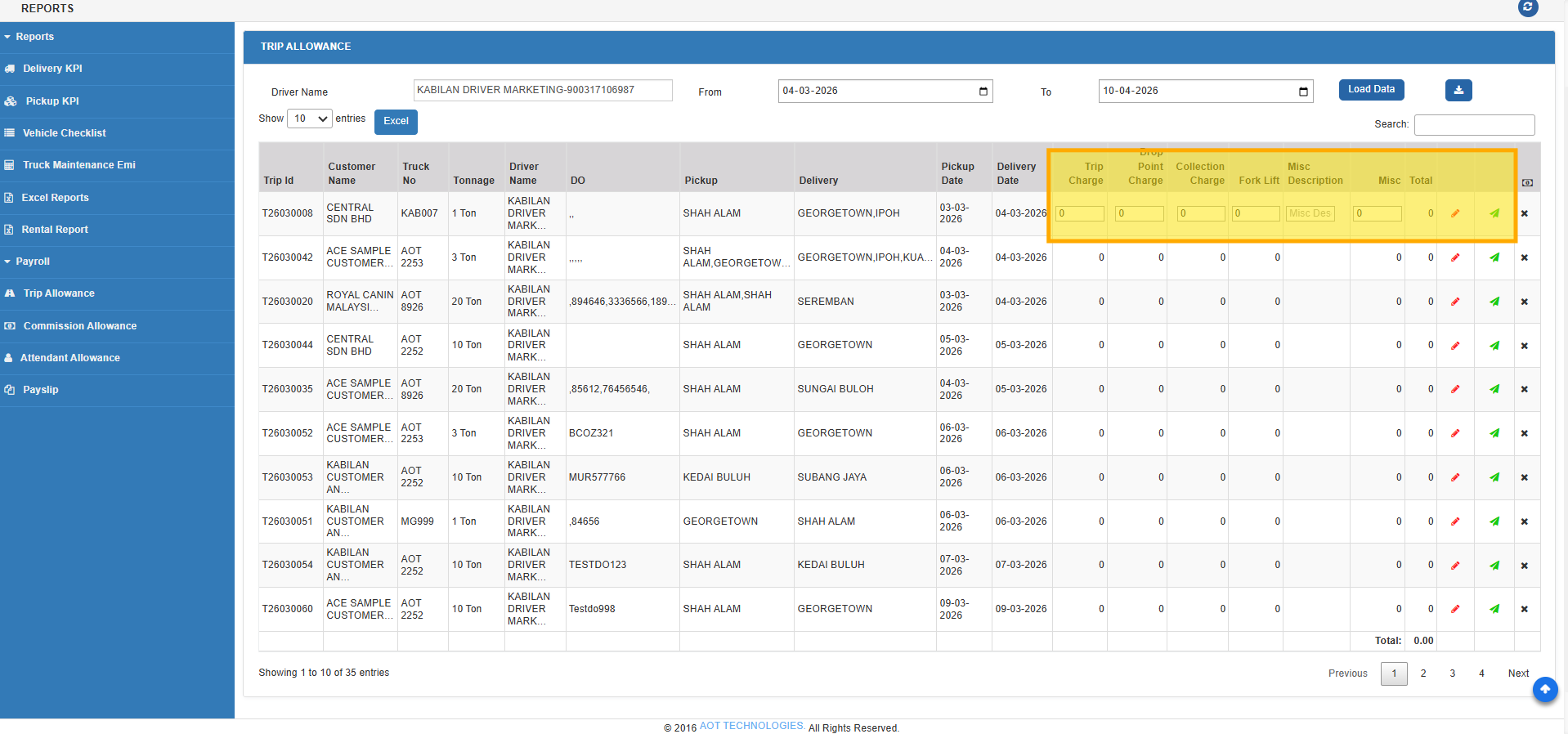
Go to Reports & Payroll → Payroll >> Trip Allowance.
-
Enter Driver Name and select FROM–TO dates.
-
Click LOAD DATA to view allowance records.
-
If allowance was added during POD upload, it will appear automatically.
-
Use EDIT to make changes, then click SAVE.
-
Once a payslip is generated, the PAYSLIP GENERATED column shows a tick mark.
-
Data can also be downloaded in Excel and PDF formats.
Notes
• Ensure correct driver and date range for accurate data.
• Trip allowance can be updated manually or via POD upload.
• Always save after editing to maintain consistency.