Credit Debit Note
This guide walks you through the steps to manually generate a Credit or Debit Note for a Customer, Vendor, or Supplier within the application. This feature is especially useful when issuing notes with e-Invoice integration.
🧭 Step 1: Open the Credit/Debit Note Form
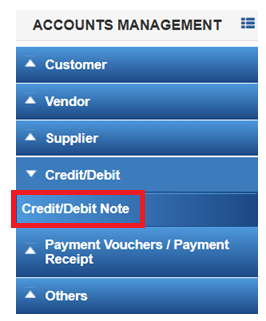
Go to Financial Management → Credit/Debit → Credit/Debit Note.
📝 Step 2: Fill Out the Note Details
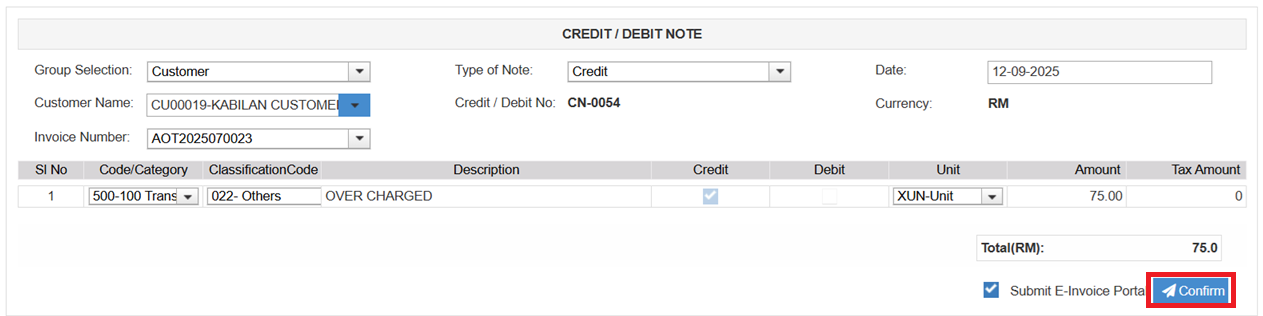
-Select the group (Customer/Vendor/Supplier) and note type (Credit or Debit).
-Type a few letters of the name to auto-fill the customer/vendor/supplier.
-Choose the related invoice from the dropdown.
-Add item details: Code/Category, Classification Code, Description, and Amount.
-Enable Submit to E-Invoice Portal checkbox and click CONFIRM button.
📌 Step 3: After Submission
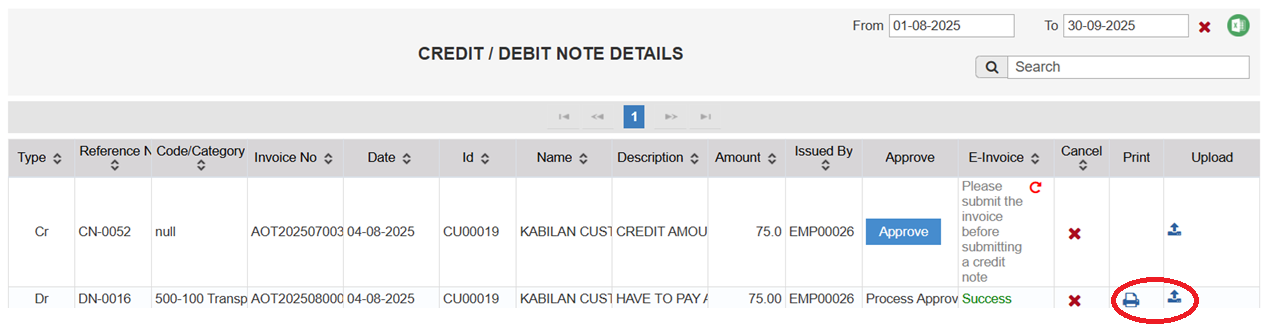
-The note appears in the Credit/Debit Note Details table.
-You can Print, Edit, or Cancel the note as needed.